uBlock Origin Lite "enterprise" deployment and management

Installing ad blockers prevents web based malware infections and improves user experience by hiding annoying website content. In fact, even the CISA advises installing ad blockers. It's a win all round, unless you own a web property that relies on advertising for income...
This post explains how to deploy uBlock Origin Lite via intune and how to centrally manage a domain allow list.
Quick Deployment
You can save time by downloading and importing my premade intune configuration policy file from GitHub.
Download the JSON file linked above
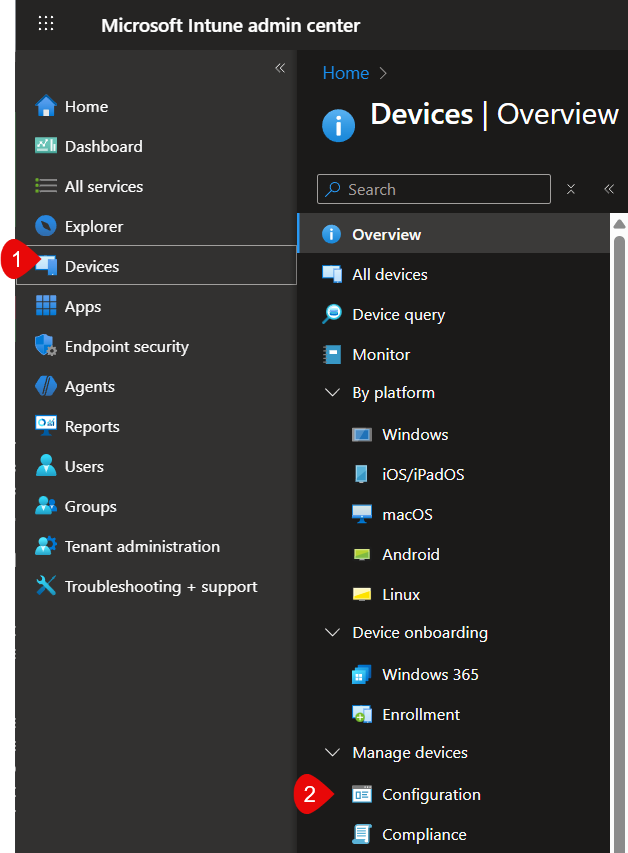
Open the intune portal to the Devices page https://intune.microsoft.com/#view/Microsoft_Intune_DeviceSettings/DevicesMenu/~/overview
Open the Configuration: page:
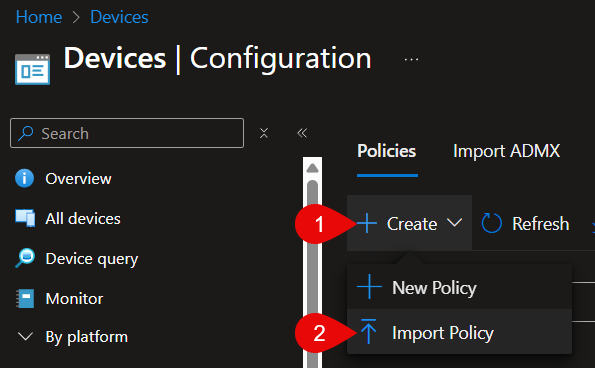
- Select Create, then select Import Policy
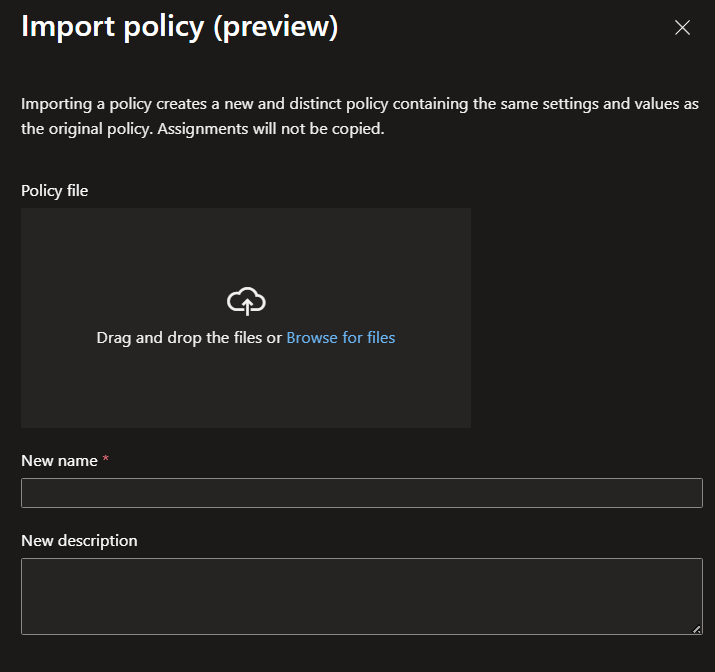
Upload the JSON file from step 1 and give the policy a descriptive name
- Now target the policy at a group which contains devices. At the time of writing there is no way to directly target individual devices with a configuration profile you have to use groups.
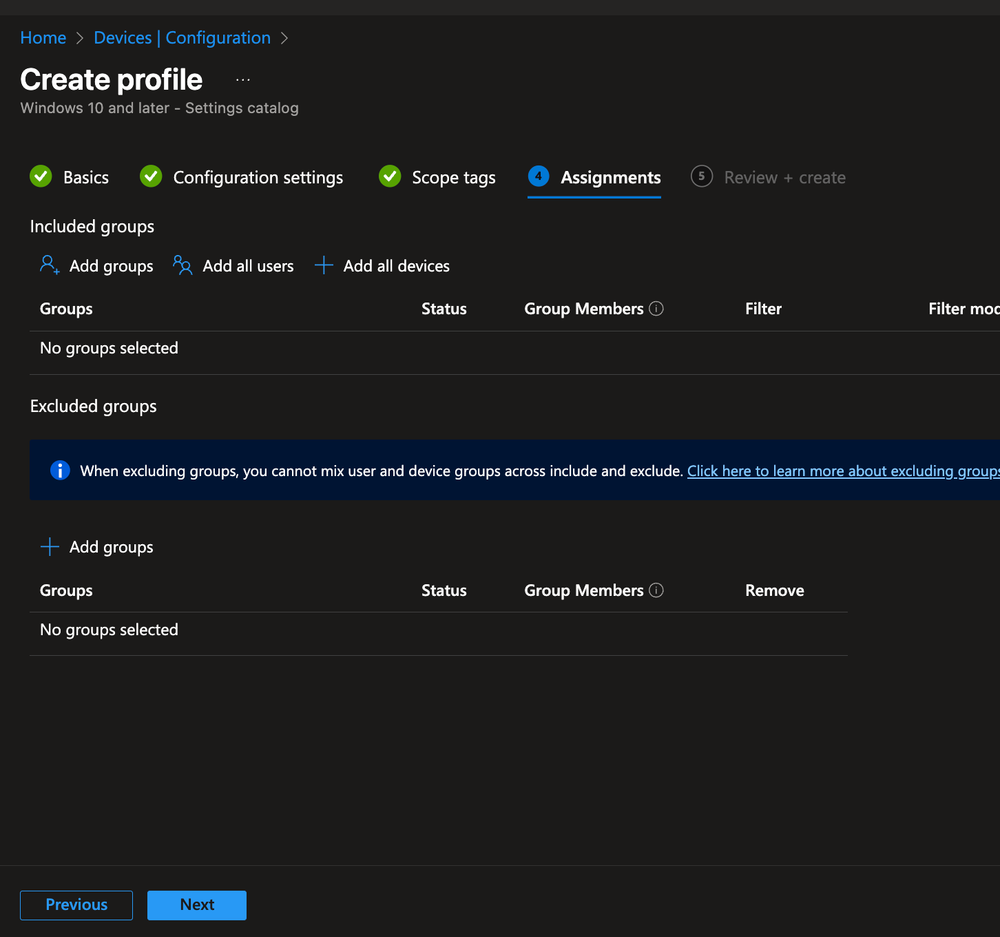
uBlock Origin Lite will be force installed on any device this policy applies to.
Manual Deployment
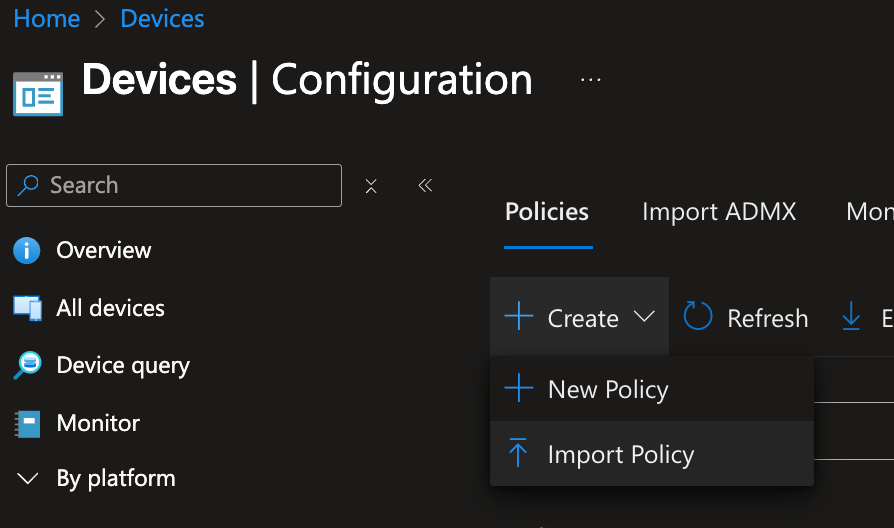
- Open the intune portal to the Devices page https://intune.microsoft.com/#view/Microsoft_Intune_DeviceSettings/DevicesMenu/~/overview From here, select Configuration:
- Next select select Create, then select New Policy
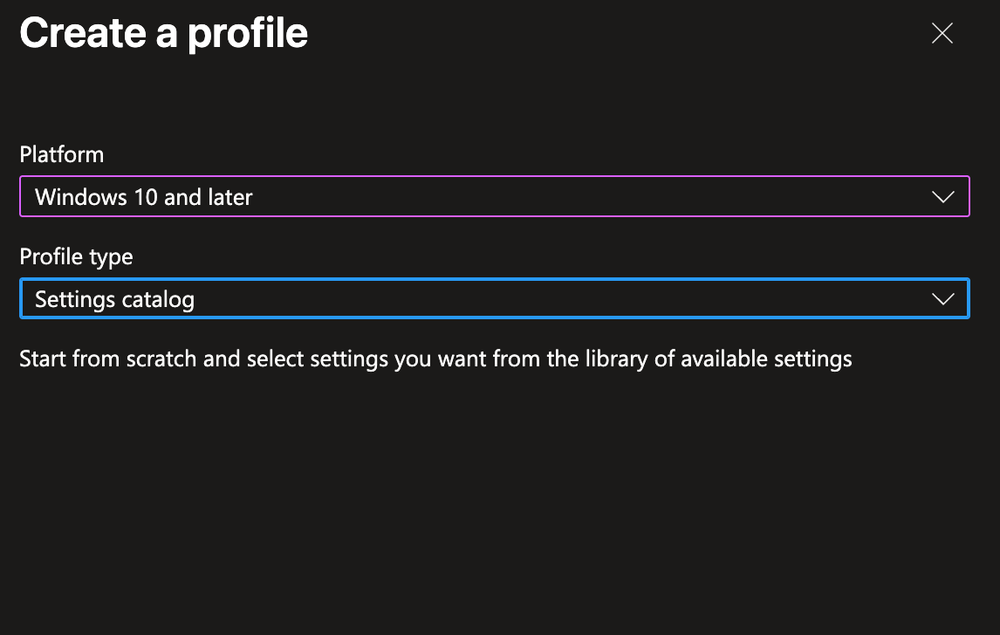
- In the new window that appears, select Windows 10 and later, then select Settings Catalogue.
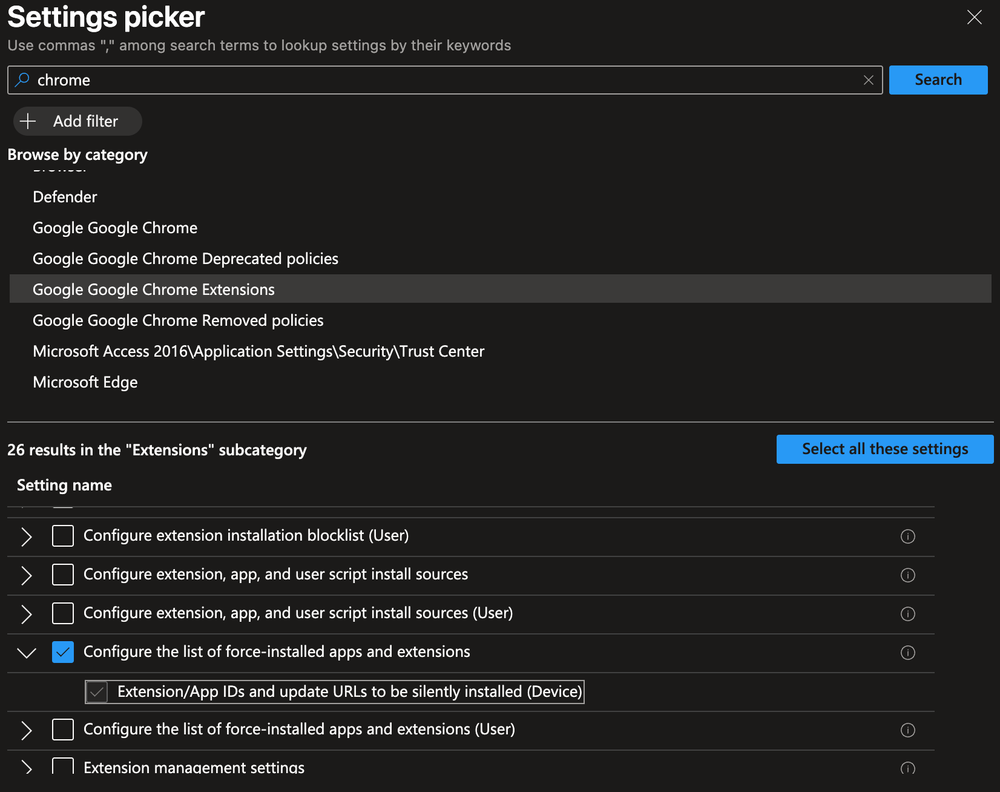
- In the settings picker, search for Chrome to find and select Configure the list of force-installed apps and extensions.
- For edge, the settings are slightly different. Find and select the setting Control which extensions are installed silently.
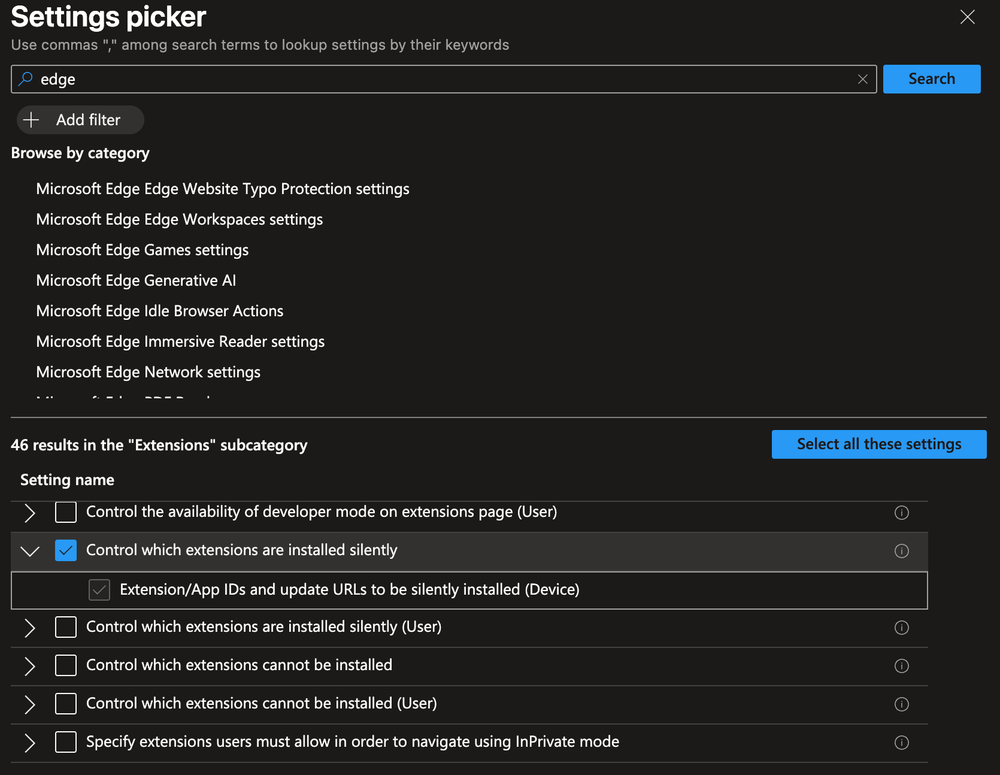
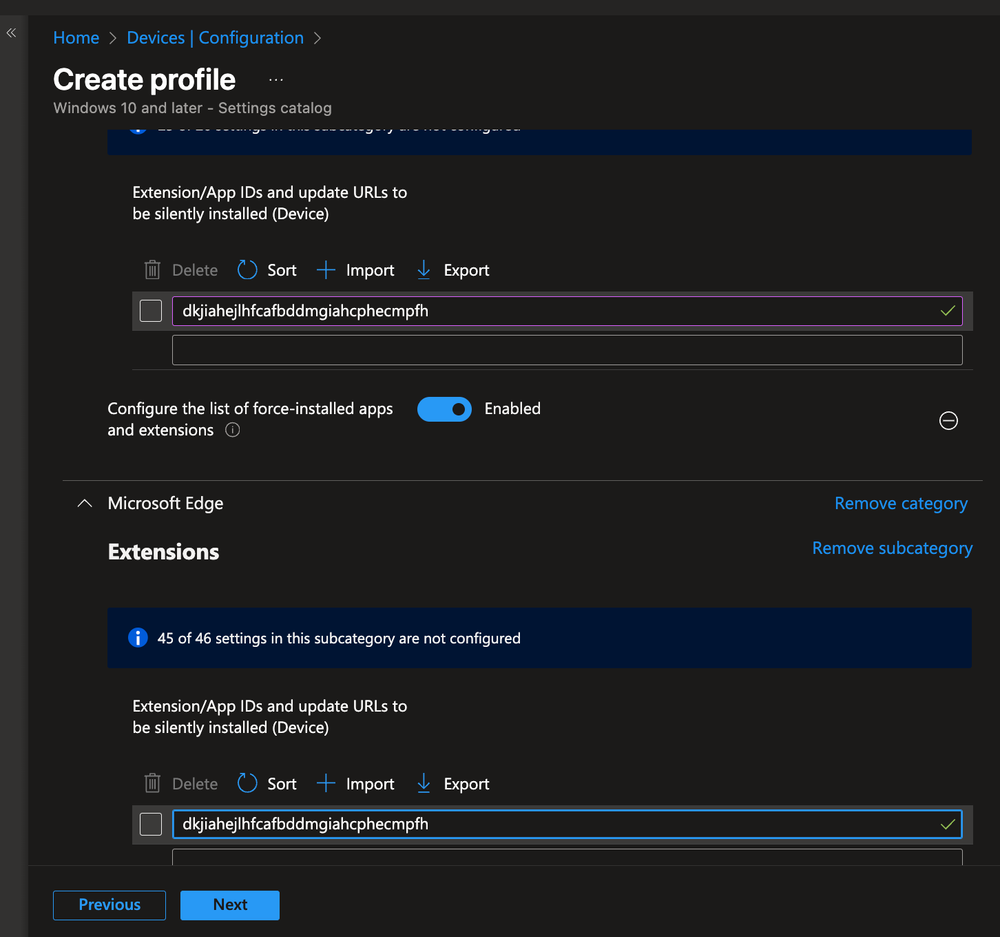
- In the settings window on the left, set the extension ID for both Chrome and Edge to: dkjiahejlhfcafbddmgiahcphecmpfh
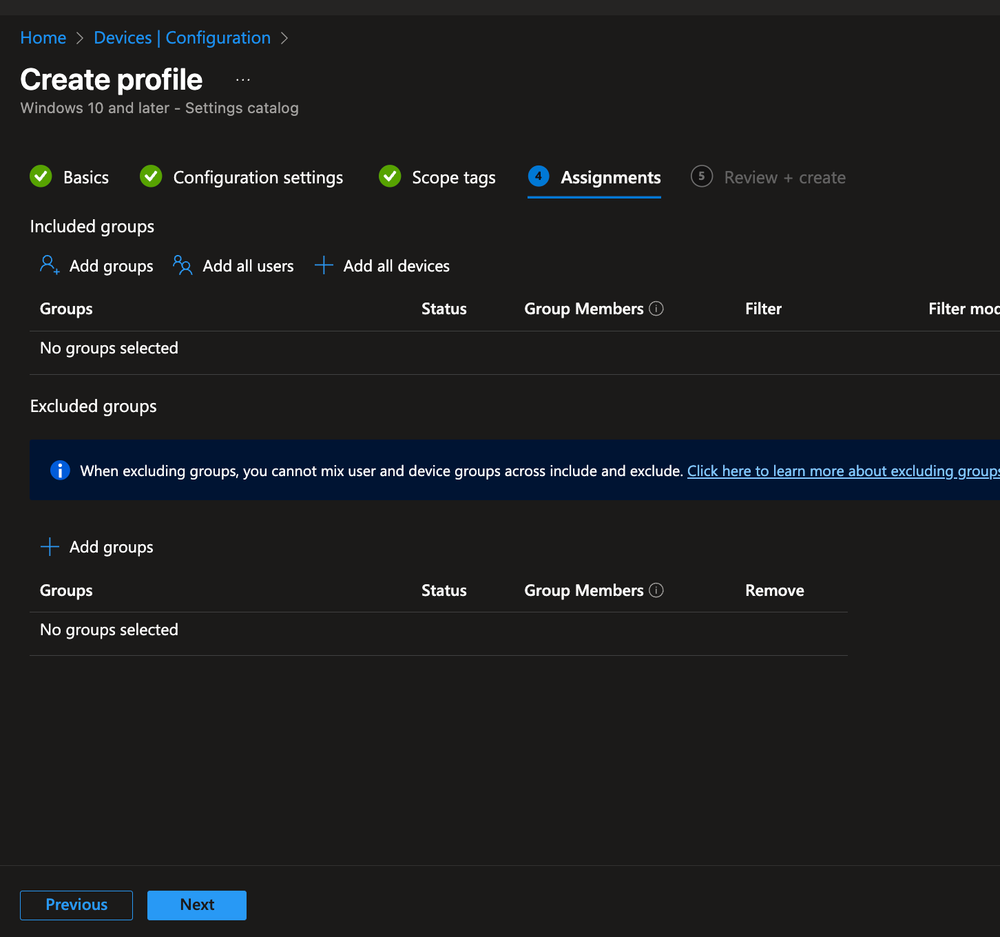
- Select Next then assign a computer group to the configuration policy. At the time of writing there is no way to directly target individual devices with a configuration profile. You have to use target groups.
Windows devices that are target by this device configuration will have ublock force installed on Chrome and Edge.
Managing the allow list
In some cases uBlock can break site functionality therefore most business will need to create an allow list. This allow list can be managed via the Windows registry. Unfortunately at the time of writing intune has no native registry management so we have to use a PowerShell script via Scripts and Remediations.
Download this premade PowerShell script. Be sure you add the domains you wish to allow list by changing the "DOMAIN.COM" fields within the PowerShell script, they are within variable $AllowedDomains
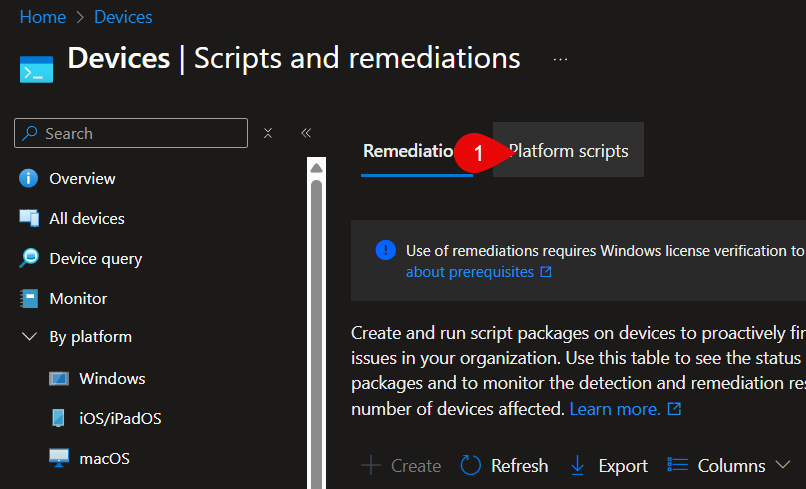
Open intune to the Scripts and Remediations settings page https://intune.microsoft.com/#view/Microsoft_Intune_DeviceSettings/DevicesWindowsMenu/~/powershell
Select Platform Scripts
Give the policy a descriptive name then upload the PowerShell script you grabbed from GitHub in step 1
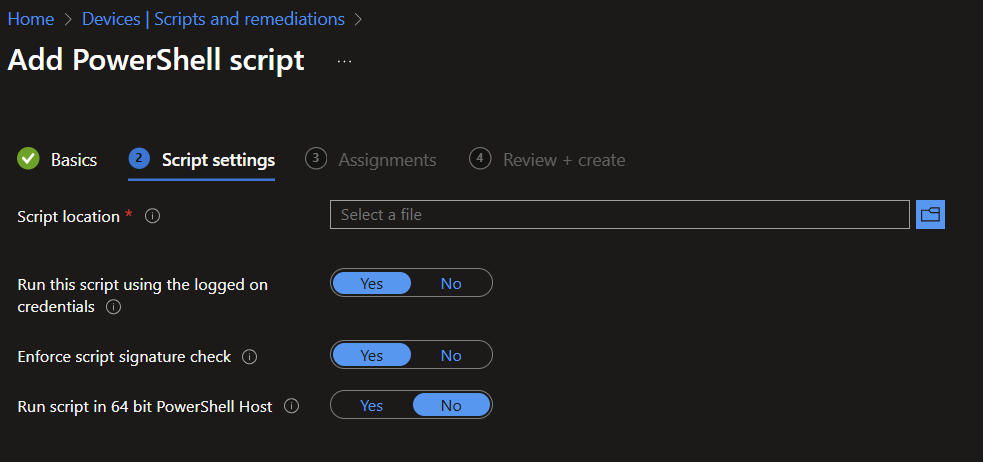
- Target the script at a group containing devices, the registry setting will be deployed to those devices. You must deploy intune remediation scripts against groups which contain users or devices.
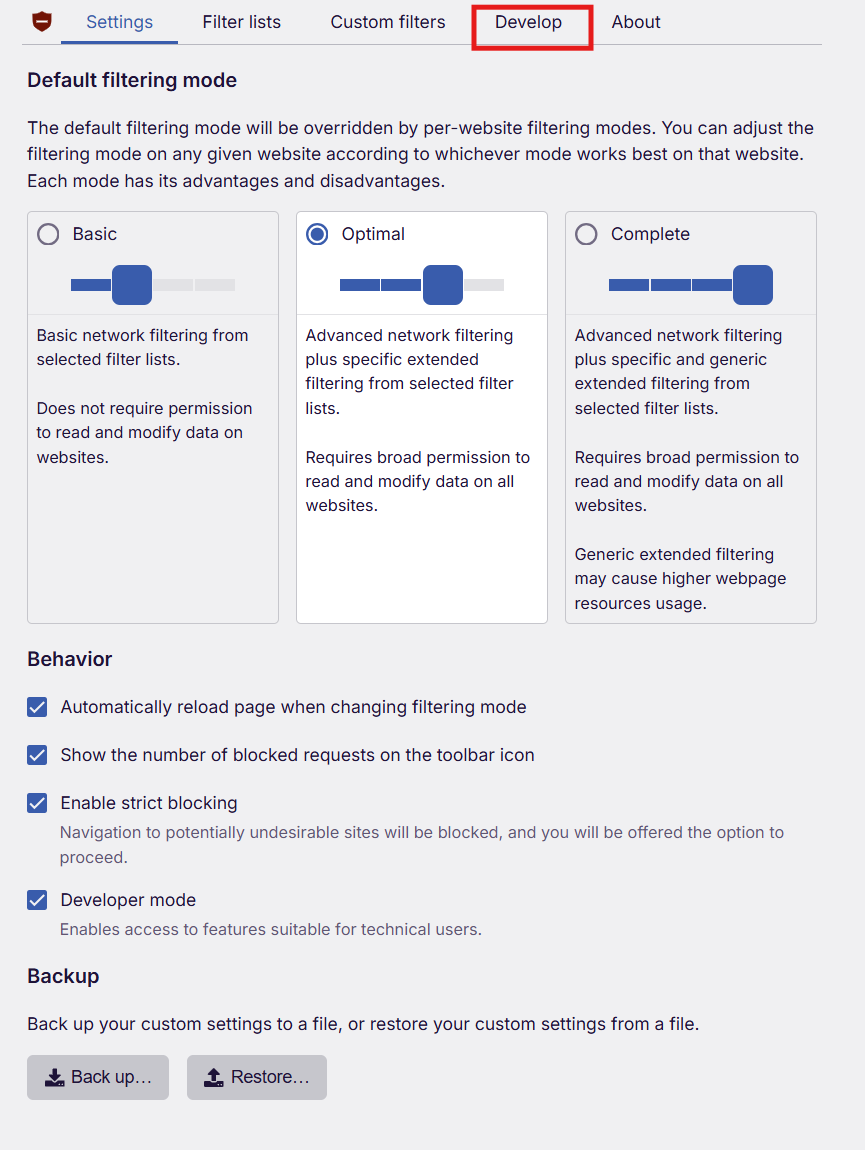
To confirm the domains have been added to the no filter list, open the extension settings (browse to chrome-extension://ddkjiahejlhfcafbddmgiahcphecmpfh/dashboard.html) then enable Developer mode
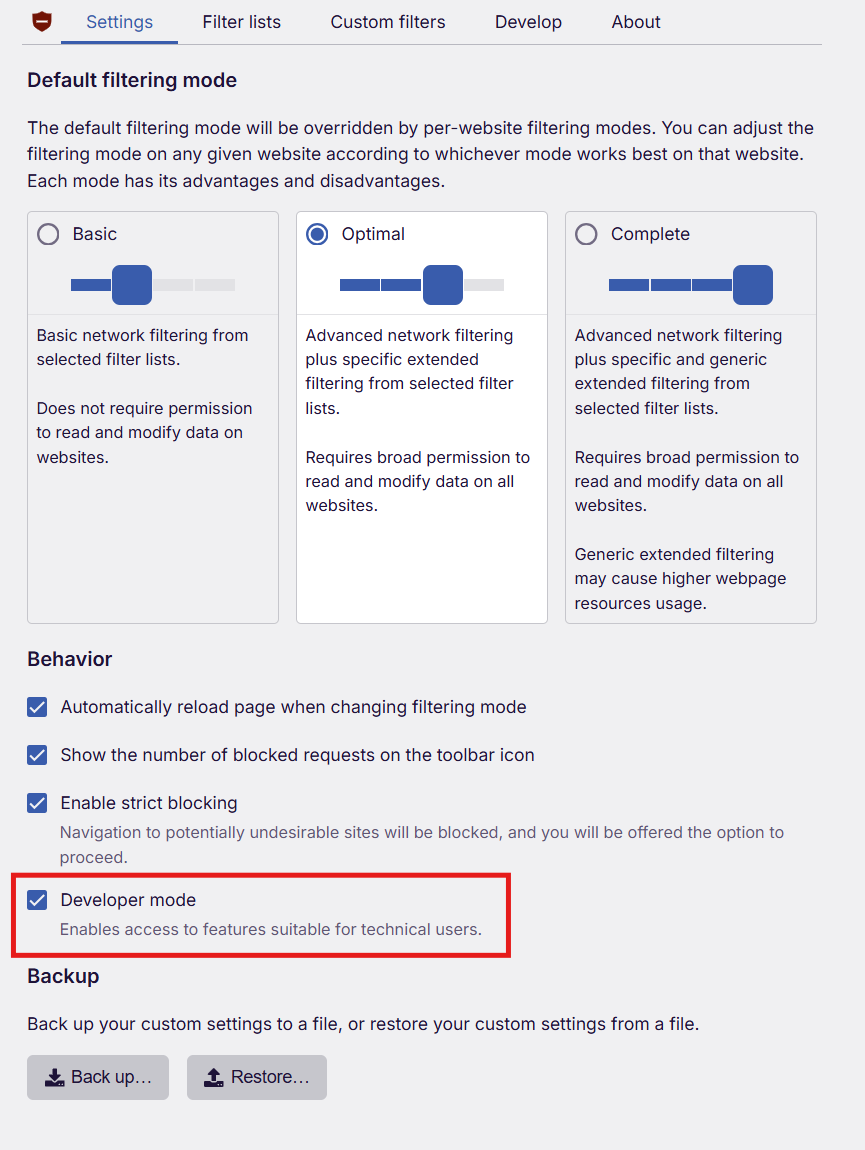
Next, select the Develop tab and check the domain is added to the list